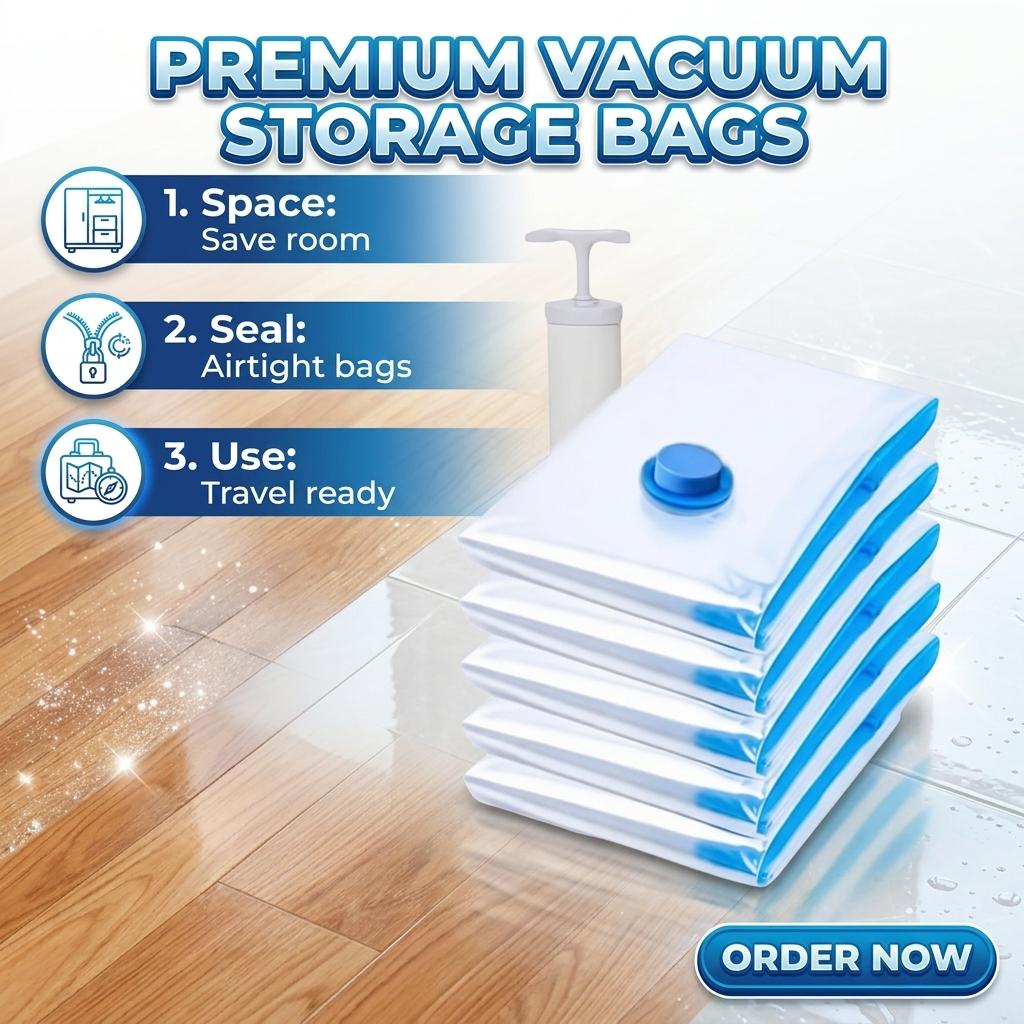
Product photography makes or breaks vacuum bag sales online. In a category where every listing looks similar — a plastic bag with a valve — the difference between a $5,000/month listing and a $50,000/month listing often comes down to images. The good news: you don’t need a professional studio. Here is exactly how to shoot vacuum bag product photos that convert.
Why Vacuum Bag Photography Is Uniquely Challenging
Vacuum bags have specific visual challenges: they are transparent or semi-transparent, highly reflective (glare from the PE layer), and their key selling point — compression — is invisible in a static image. Solving these challenges requires specific techniques.
The 7 Image Types Every Vacuum Bag Listing Needs
| # | Image Type | Purpose | Conversion Impact |
|---|---|---|---|
| 1 | Hero shot (white background) | Main listing image, search results | Click-through rate |
| 2 | Packaging + contents | Shows exactly what buyer receives | Reduces returns |
| 3 | Material close-up (macro) | Shows texture, thickness, valve detail | Quality perception |
| 4 | Before/after compression | Demonstrates the core value prop | Primary conversion driver |
| 5 | Size comparison | Shows relative size vs. common objects | Reduces “too small” returns |
| 6 | Lifestyle / in-use | Shows bag in a real home setting | Emotional connection |
| 7 | Infographic / feature callout | Labels key features with text overlays | Mobile shopper conversion |
DIY Equipment Setup (Under $200)
- Camera: Any smartphone released after 2021 (iPhone 13+, Samsung S22+, Pixel 7+). Use the main lens, not ultra-wide.
- Lighting: Two LED panel lights with softboxes ($40–$60 each on Amazon). Place at 45° angles to the product.
- Background: White poster board ($5) for hero shots. Wood-texture contact paper on foam board ($15) for lifestyle.
- Tripod: Essential for sharp macro shots. A basic phone tripod is $15–$25.
- Props: Clothes (sweaters, jackets), measuring tape, a suitcase (for travel bag context), a closet rod (for hanging bags).
Shot-by-Shot Instructions
Shot 1: Hero Image (White Background)
Place the bag flat on white poster board. Light from both sides to eliminate shadows. Shoot from directly above (flat lay). The bag should fill 85% of the frame. If the bag is transparent and hard to see, place a colored piece of paper inside the bag to give it visual weight — then remove the paper in Photoshop or use it as-is for a lifestyle variant.
Shot 4: Before/After (The Money Shot)
This is your highest-converting image. Setup: take two photos from the exact same tripod position. Photo 1: a pile of 4–6 sweaters stacked on a surface with the empty bag next to them. Photo 2: the same sweaters compressed inside the sealed bag, with a measuring tape showing the thickness difference. Combine into a side-by-side or use a slider comparison format.
Pro tip: Use brightly colored clothes (red, yellow) — they pop better through the transparent bag than dark colors. Avoid black clothing for compression demonstrations.
Common Photography Mistakes
- Glare on the valve: The shiny PE surface reflects light. Fix: use a polarizing filter (or a pair of polarized sunglasses held in front of the phone lens) and adjust light angles until the reflection disappears.
- Empty bag looks invisible: Transparent bags on white backgrounds disappear. Fix: slightly angle the bag so it catches light, or place a colored card inside and remove in post.
- Wrinkled bag looks low quality: New bags straight from the factory are folded and creased. Fix: lightly steam the bag (from a distance) or fill it with tissue paper and let it sit for an hour to relax the creases. Never photograph a freshly unfolded bag.
- Inconsistent white balance: Shoot all images in the same lighting setup in one session. Use your phone’s white balance lock feature.
Post-Processing Checklist (Free Tools)
- Crop to 1:1 square for Amazon main image; 3:4 or 4:3 for website product pages.
- Adjust exposure +0.3 to +0.5 (slightly brighter converts better).
- Increase contrast +10% and clarity/sharpness +15%.
- Remove dust specks with the healing tool.
- Export at 2000×2000px minimum, JPEG quality 85%.
- File size under 10MB (Amazon limit).
FAQ
Can I use AI-generated backgrounds?
Yes — Amazon allows AI-edited product images as long as they accurately represent the product. Tools like Photoshop Generative Fill can replace backgrounds. But Amazon’s main image must be a pure white background (RGB 255,255,255) — no AI backgrounds there.
How many images per listing?
Amazon allows up to 9 (7 images + 1 video). Use all of them. Listings with 7+ images convert 31% better than listings with 3 or fewer.
Sources: Amazon product image requirements; ecommerce conversion rate studies; product photography best practices.